Titan Drive is a secure cloud storage solution integrated with your Titan email account. It lets you store and organize files, preview and manage content, save email attachments directly to Drive, and share files or folders using Shares or Transfers.
With Titan Drive, you can upload files from your device, collaborate using live share links, send one-time Transfer links, manage shared content, and customize recipient pages with branding features.
This guide explains how to access Titan Drive, organize and manage files, use Drive with Email, and share files securely with others.
1. Access Titan Drive
2. Organizing Files in Titan Drive
- Create a New Folder in Drive
- Upload button or drag and drop files directly.
- File size and name limits
- Duplicate File Handling
- Download Files in Drive
- Rename Files or Folders
- Move Files to Another Folder/Trash
- Preview Files in Titan Drive
- Share files and folders from Titan Drive
- Send a Transfer from Titan Drive
4. Manage Trash and Deleted files in Titan Drive
- View Deleted Files
- Restore Deleted Files
- Permanently Delete Files
- Empty Trash
- 30-Day Trash Retention Policy
5. Using Titan Drive with Email
- Save a Single/Multiple Attachments to Drive
- View Files Already Saved to Drive
- Attach Files from Titan Drive to Emails
6. What Types of File Sharing are Supported in Titan Drive
- Share Files and Folders
- Send a Transfer
- Manage Transfers
- Share vs Transfer — Which One Should You Use?
- Set Up Drive Branding
Access Titan Drive
- Log in to your Titan Mail account.
- Click the App Switcher in the top navigation bar.
- Select Drive from the application list.
- The Titan Drive dashboard will open where you can view and manage all files stored in your Drive.
Organizing Files in Titan Drive
Titan Drive allows you to organize files using folders, search, filters, and file management actions.
Create a New Folder in Drive
Folders help organize files in Drive.
- Open Titan Drive, click New Folder, enter a name, and click Create.
The folder will appear in your current location.
Note: Duplicate folder names are not allowed. Please use a unique name for each folder.
Switch Between Email and Drive
You can easily switch between Email and Drive.
Log in to Titan Mail, click the App Switcher, select Drive, and the Titan Drive dashboard will open to manage your files.
If your plan includes Drive, the Drive interface will open.
If your plan does not include Drive, a paywall will appear.
Upload button or drag and drop files directly.
You can upload files from your device to Drive.
- Open Titan Drive, click Upload, select Upload File or Upload Folder, and choose files from your device.
The upload progress window will appear. Once complete, files will appear in the selected folder.
To Drag files from your computer.
- Drag and drop the files into the Drive window, and they will automatically start uploading.
File size and name limits
Titan Drive supports uploads up to 5 GB per file and file or folder names up to 256 characters.
Limits
- Maximum file size: 5 GB
- Maximum file/folder name length: 256 characters
Error messages
- File size limit exceeded: Can’t upload “{File name}” because it exceeds the 5 GB size limit.
- File name too long: Can’t upload “{File name}” because the file name exceeds the 256-character limit.
If the upload fails, check the file size and shorten the file or folder name if needed.
Duplicate File Handling
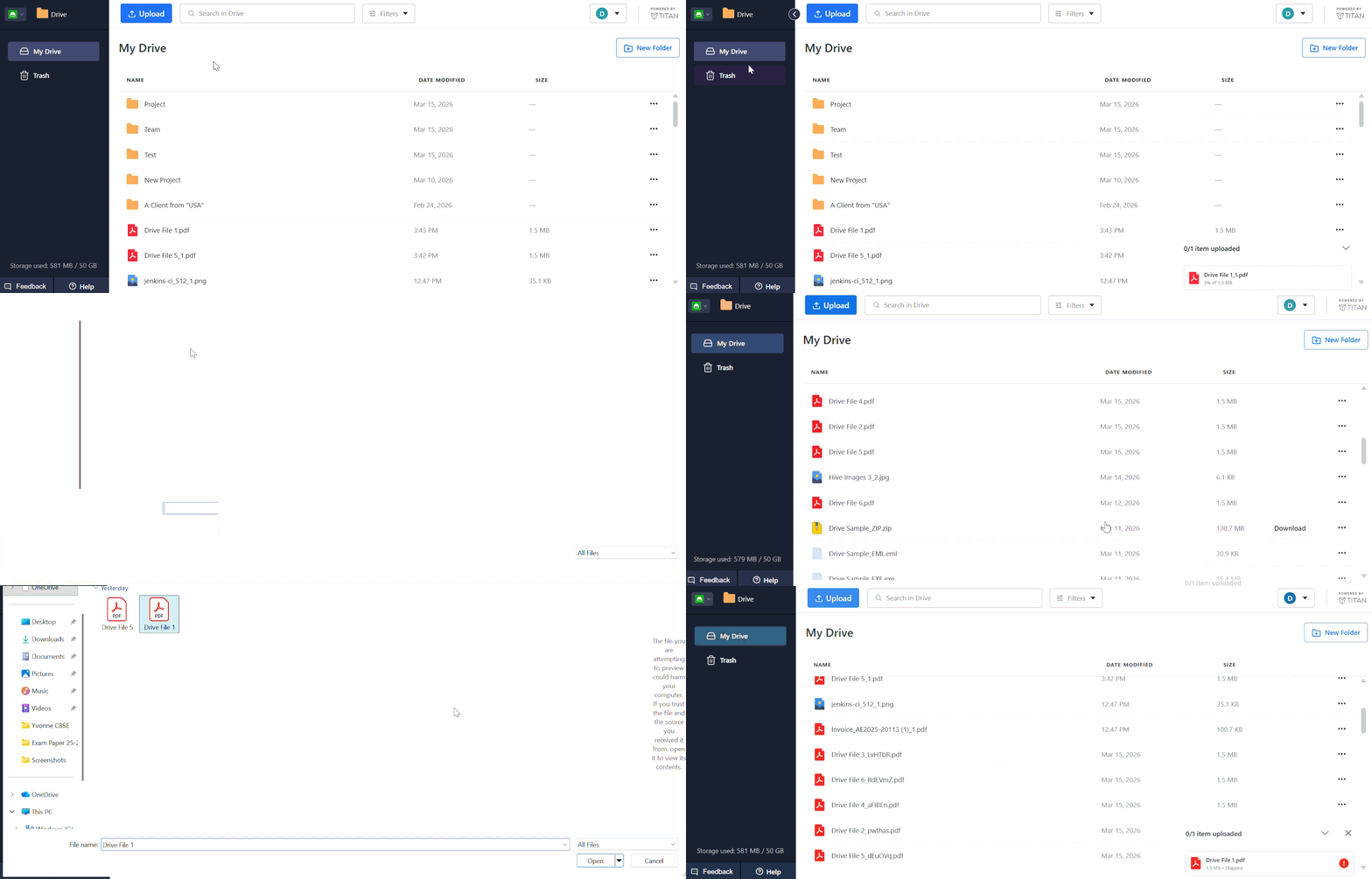
If a file with the same name already exists in the selected folder, you will see duplication options.
You can choose:
Replace : The existing file will be moved to Trash and replaced with the new file.
Keep Both: A new file will be created with a number added to the file name. This option is selected by default.
Example:
Drive File 5.pdf
Drive File 5_1.pdf
Skip: The file will not be added to the selected folder, and the existing file will remain unchanged.
Download Files in Drive
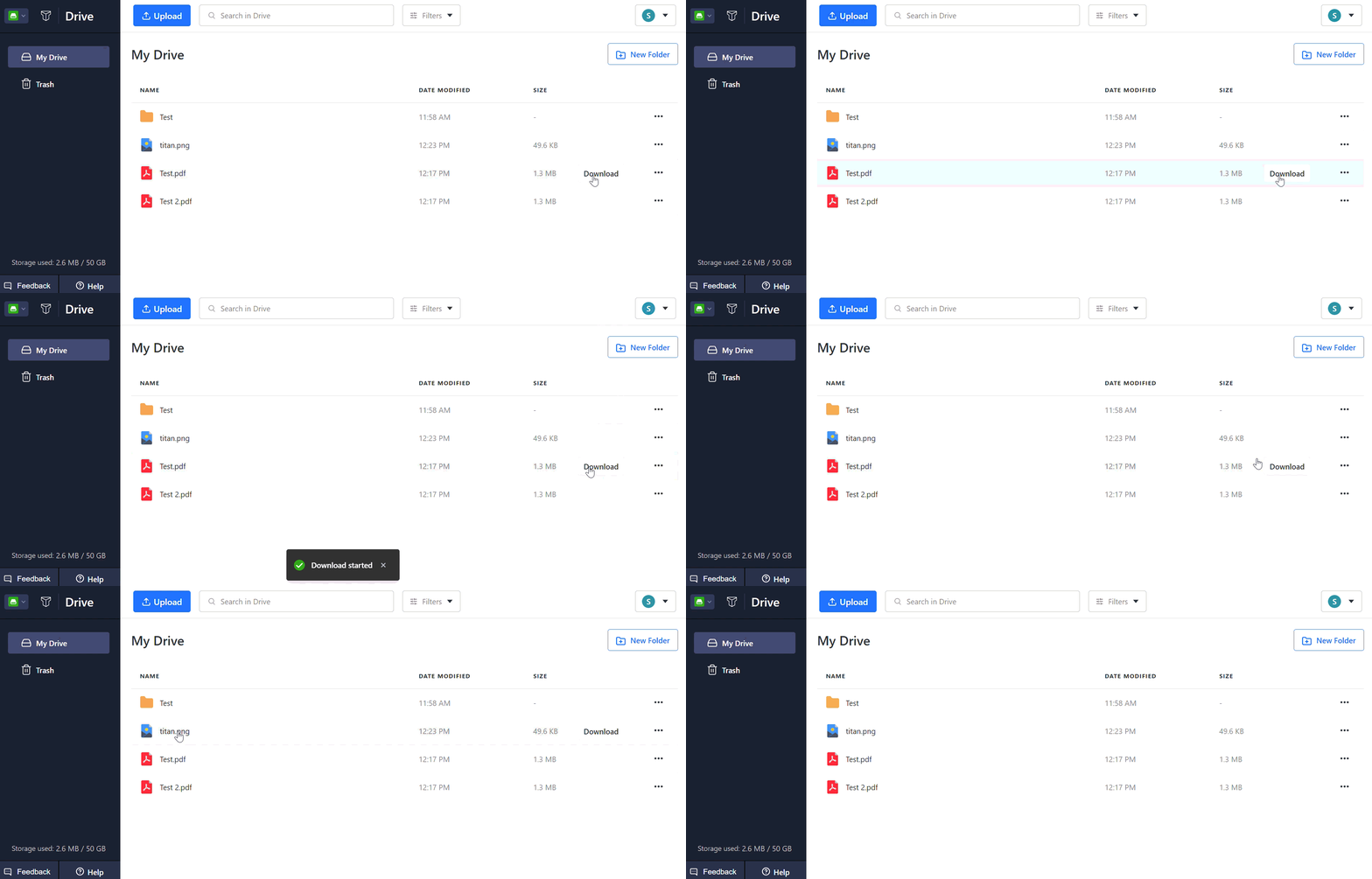
- Hover over a file, click Download, and track the download progress in your browser as the file is saved to your device.
Rename Files or Folders
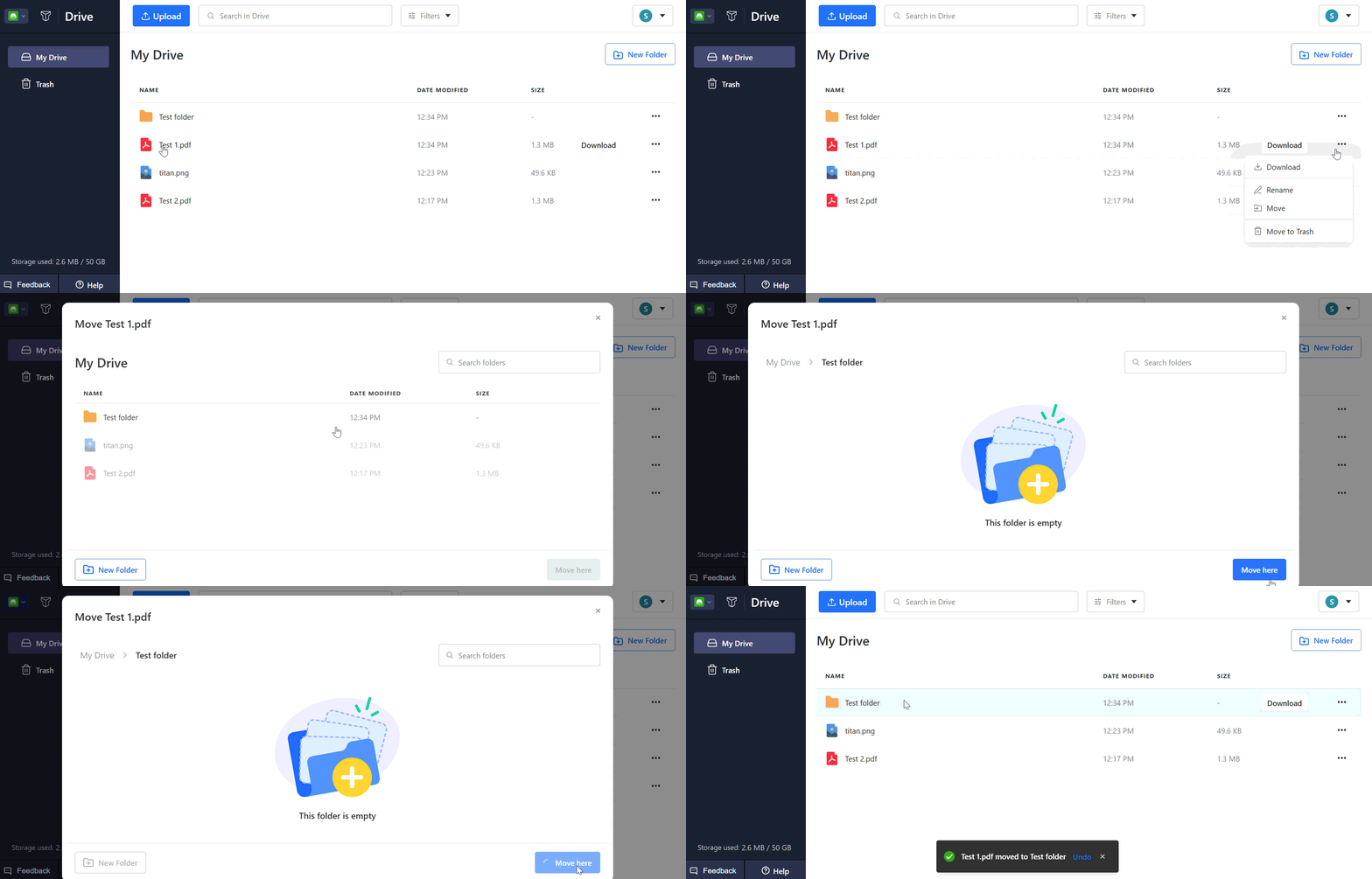
- Click the three dots (⋮) next to the file or folder, select Rename, enter the new name, and click Rename.
Move Files to Another Folder or to Trash.
- Click the three dots (⋮) next to the file, select Move or Move to Trash, choose the destination folder, and click Move.
The file will be relocated to the selected folder.
Preview Files in Titan Drive
Titan Drive lets you preview supported files directly without downloading them.
Preview a file
- Open Titan Drive
- Navigate to the file
- Double-click the file or select Preview
The file opens in the preview window. If multiple files are available, use the left and right arrows to navigate between previewable files.
Supported preview files
- PDF documents
- Images (JPG, PNG, GIF, WEBP)
- Text files
- Microsoft Office files
- Audio and video files
Unsupported preview files
Preview is not available for:
- Folders
- Executable files
- Unsupported file formats
Titan Drive displays a “Preview not available” message for unsupported files.
Additional details
- Preview is available only for files, not folders
- A download option is available in the preview screen
- Email attachments can also be previewed from supported email views
Sharing Files from Titan Drive
Titan Drive allows you to share files and folders using either Share or Transfer, depending on how you want recipients to access the content.
Share Files and Folders
Sharing gives recipients access to the live version of files or folders in your Titan Drive. Any updates made later are automatically reflected for recipients.
Learn more: Share Files and Folders from Titan Drive
Send a Transfer
Transfers create a downloadable snapshot copy of files or folders at the time they are shared. Future changes made in Titan Drive are not reflected in the Transfer.
Transfers also support expiry dates, passwords, notes, and download tracking.
Learn more: Send a Transfer from Titan Drive
Find Files in Titan Drive
Titan Drive helps you quickly find files and folders using Search and File Type filters.
Search for Files and Folders
You can search for files across your Drive.
- Open Titan Drive, use the Search bar, enter keywords (e.g., Invoice, Steel, Client Name), and view the matching files in the results.
Filter Files by Type
You can filter files by file type.
- Open Titan Drive, click Filter, choose a file type (e.g., PDFs, Images, Videos), and view the filtered results.
Drive will display only files matching the selected filter.
Managing Trash and Deleted Files in Titan Drive
In Titan Drive, deleted files are moved to the Trash folder, where you can easily access the Trash folder from the sidebar to view and manage deleted files.
View Deleted Files: To delete a file, click Move to Trash.
Restore Deleted Files: To restore a deleted file, click Restore, and it will be returned to its original folder.
Permanently Delete Files : To permanently delete a file, click on Delete Forever.
Empty Trash: Click Empty Trash to remove all files at once.
Note: Deleted files stay in Trash for 30 days before permanent deletion. You can recover, permanently delete, or empty the Trash anytime within this period.
Using Titan Drive with Email
Titan Drive integrates with your email to make file management easier when sending or receiving attachments.
Save Email Attachments Directly to Drive
You can save email attachments directly to Drive without downloading them to your device.
Where the option appears
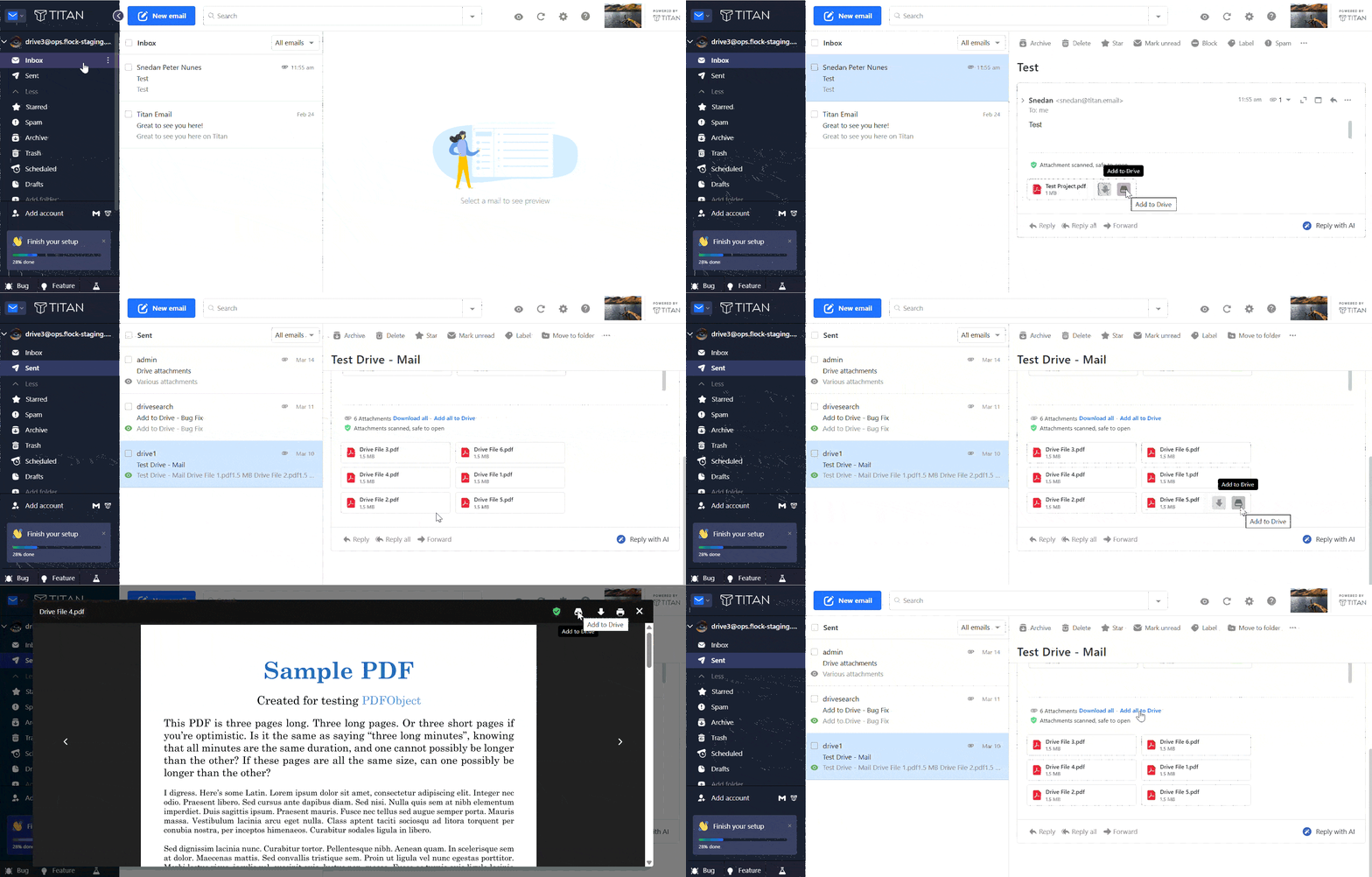
The Save to Drive option appears in the following places, next to attachments in received emails, sent emails, and in the attachment preview window.
Save a Single/Multiple Attachments to Drive
- Open an email with an attachment and click Save to Drive next to the attachment to store it in your Drive.
- For multiple attachments, click Add all to Drive, choose a folder, and click Save to upload all attachments at once.
All attachments will be uploaded to the selected Drive folder.
View Files Already Saved to Drive
If an attachment was previously saved to Drive:
- The "Add to Drive" option will change to "Show in Drive." Click it to open the file in a new browser tab.
The file will be highlighted in its folder location in Titan Drive.
Save Uploaded Email Attachments to Drive
When you upload a file from your computer while sending an email, Titan may give you an option to save the uploaded file to Drive after sending the email.
- Compose and send a new email, then click Add to Drive to save the attached file to your Drive.
The file will be stored in the Drive.
Attach Files from Titan Drive to Emails
Instead of uploading a file from your computer, you can attach files already stored in your Drive.
- Click Compose, then Attach Files > Add from Drive, browse your Drive, select the file, and click Attach.
The file will be inserted into the email.
When files are sent as attachments
Files are added as regular email attachments when:
- The selection contains only supported file types
- No folders are selected
- Total attachment size is within the attachment limit (currently 30 MB)
Recipients can preview or download these attachments directly from their email client.
Learn more: Supported attachment types
When files are sent as links (Transfers)
Files are automatically sent as an Add as link Transfer when:
- A folder is selected
- The file type is not supported as a regular attachment
- Total attachment size exceeds 30 MB
The email displays the file as a hyperlinked attachment that looks similar to a regular attachment.
When the recipient clicks the attachment link:
- A secure Transfer page opens in the browser
- Recipients can preview or download the files
- Future changes made in Titan Drive are not reflected in the Transfer
Learn more: Transfer recipient view
Transfer expiry and tracking
- Transfer links may have default expiry limits based on the plan
- Highest plans support a default expiry of up to 60 days
- Expiry can be updated later from Manage Transfers
- If tracking is enabled, views and downloads can be monitored from Manage Transfers
Learn more: Update Transfer Expiry
What Types of File Sharing are Supported in Titan Drive
Titan Drive provides multiple ways to securely share files and folders with others. Depending on your use case, you can choose between live sharing, one-time Transfers, or branded sharing experiences.
Share Files and Folders
Sharing allows you to give recipients ongoing access to files or folders stored in your Titan Drive.
Recipients always see the latest version of the shared content, making Share ideal for collaboration and continuously updated files.
Learn more: Share Files and Folders from Titan Drive
Send a Transfer
Transfers allow you to send a downloadable snapshot copy of files or folders.
Recipients receive the exact version shared at the time the Transfer was created, even if the original files later change in Titan Drive.
Transfers also support expiry settings, passwords, notes, and download tracking.
Learn more: Send a Transfer from Titan Drive
Manage Transfers
The Transfers page helps you manage all active and expired Transfers created from your account.
You can:
- View Transfer activity
- Extend expiry dates
- Copy or delete Transfer links
- Track views and downloads
Learn more: Manage Transfers in Titan Drive
Share vs Transfer — Which One Should You Use?
Not sure whether to use Share or Transfer?
This comparison guide explains the differences between both options, including:
- Live updates vs snapshot copies
- Storage impact
- Tracking support
- Expiry behavior
- Recipient experience
Learn more: Share vs Transfer — Which One Should You Use?
Set Up Drive Branding
Drive Branding allows you to customize recipient-facing Share and Transfer pages using your company branding.
You can personalize:
- Logos
- Company name
- Colors
- Website and social links
Learn more: Set Up Drive Branding
Unlock Everything Titan Drive Offers
| Features | Premium | Ultra |
|---|---|---|
| 💾 Drive Storage | 1 GB | 50 GB |
| 🔄 Transfers | 3 Transfers | Unlimited |
| 🎨 Branded Sharing | ❌ No | ✅ Yes |
| 🔒 Password Protect Files | ❌ No | ✅ Yes |
| ⏰ Link Expiry | 5 Days | Unlimited |
| 📤 File Upload Limit | 500 MB | 5 GB |
| ⬇️ Downloads per Link | 15 Downloads | Unlimited |