Titan Tasks helps you organize and track your work directly from Titan Mail by allowing you to create, manage, and complete tasks without leaving your mailbox.
Using Titan Tasks, you can manage follow-ups, reminders, pending actions, and day-to-day work items directly alongside your emails — helping you stay productive without switching between multiple apps.
In this article:
- Why use Titan Tasks
- Access Titan Tasks
- Create Tasks in Titan Tasks
- Add Due Dates and Notes
- Save and Edit Tasks
- Organize Your Tasks
- Use “My Order”
- Complete and Reopen Tasks
- Use Tasks Alongside Your Calendar
Why use Titan Tasks?
Titan Tasks is useful for:
- Following up on important emails
- Tracking pending customer responses
- Managing personal reminders
- Organizing work priorities
- Keeping action items linked to original email conversations
Examples:
- “Reply to client proposal”
- “Send invoice tomorrow”
- “Follow up on support request”
- “Schedule team meeting”
Because tasks can be linked directly to emails, you can always jump back to the original conversation whenever needed
Access Titan Tasks
You can access Tasks in the following ways:
From the Sidebar
Open the Tasks tab from the Titan Mail sidebar to quickly view and manage your tasks alongside your mailbox.
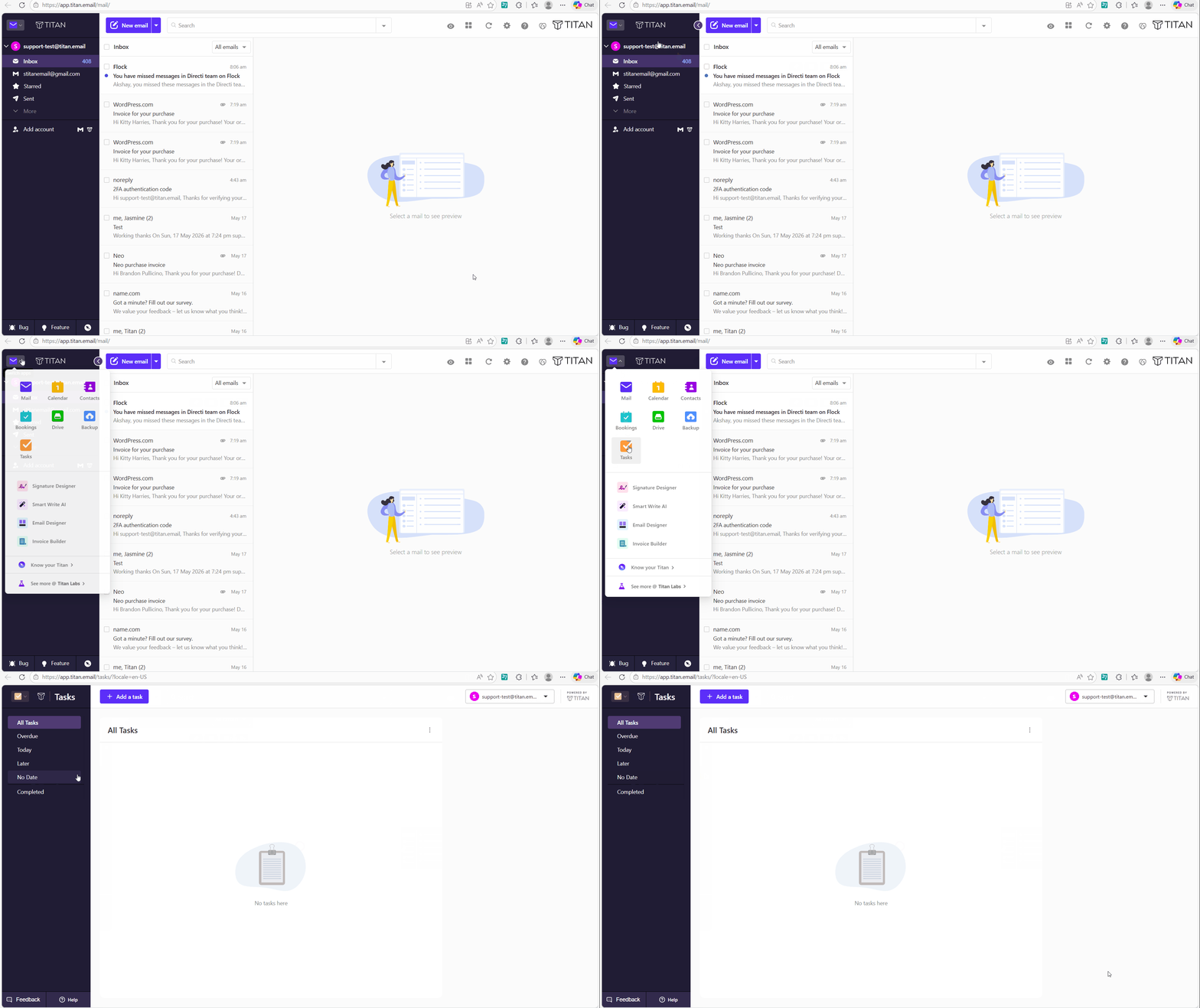
From the Apps section/icon
You can also open Tasks in a dedicated full-screen view by:
- Opening Tasks from the App Switcher
- Clicking the expand icon in the Tasks sidebar
The Tasks app opens in a new browser tab and shows all your tasks by default.
Create Tasks in Titan Tasks
Titan allows you to create tasks in multiple ways depending on your workflow. You can create tasks directly from emails, from the Tasks panel, or manually from the Tasks app.
Method 1: Create a Task using Quick Actions
You can also create tasks instantly using the Quick Actions menu available directly from the email list view.
Steps to create a task using Quick Actions:
- Launch the Titan webmail application
- Hover over any email in your mailbox
- Click on the Quick Actions icon
- Select Add to Tasks
Once the task is created:
- The email subject is automatically used as the task title
- A shortcut to the original email thread is added automatically
- The task opens for quick editing and updates
- You can optionally add:
- Due date
- Notes or description
| alert-success |
|
Method 2: Create a Task from an Email
You can quickly convert any important email into a task directly from your mailbox.
Steps to create a task from an email:
- Launch the Titan webmail application
- Open any email you have sent or received
- Click on the More Actions menu
- Select Add to Tasks
Once the task is created:
- The email subject is automatically added as the task title
- A shortcut link to the original email thread is attached automatically
- The task opens in edit mode for quick updates
- No due date is assigned by default
You can then:
- Add a due date
- Add notes or a description
- Organize the task using sorting options
- Mark the task as completed once finished
Method 3: Create a Quick Task from the Tasks Sidebar
You can also quickly create tasks directly from the Tasks panel without opening an email.
Steps to create a task from an email
- Open Titan webmail
- Open the Tasks tab from Apps
- Click Add a Task
- Enter the task title
- Optionally:
- Add a due date
- Add a description
- Click outside the task card or press Enter to save the task
While creating the task, you can:
- Set a due date using the calendar picker
- Add notes or additional details
- Organize the task later using sorting options
Method 4: Create a Manual Task from the Full Tasks App
You can also create and manage tasks from the dedicated full-screen Tasks app.
Steps to create a manual task
- Open the full-screen Tasks app
- Click Add a Task
- Enter a task title
- Optionally add:
- Due date
- Description
| alert-warning | Task titles are mandatory; empty tasks are not saved |
Add Due Dates and Notes
You can make tasks more useful by adding:
- Due dates
- Descriptions/notes
Descriptions can include:
- Reminder details
- Instructions
- Meeting notes
- Follow-up information
| alert-warning | Task descriptions support up to 300 characters. |
When a due date is added, tasks are automatically organized into sections such as:
- Overdue
- Today
- Later
- No Date
This helps you focus on urgent and upcoming work more efficiently.
Save and Edit Tasks
To save a task:
- Click anywhere outside the task card
- Or press the Enter key
Once saved, tasks display:
- Task title
- Due date
- Description
- Link to the original email (if created from an email)
You can edit tasks anytime to update:
- Title
- Due date
- Description
| alert-warning | Editing a task does not change its original creation date or position in sorting. |
Organize Your Tasks
Titan Tasks provides multiple ways to organize your work and keep important tasks easy to track.
Sort by Date Created
This is the default task view. Tasks are automatically arranged:
- With the newest tasks shown first
- Without changing their position after editing
This view is useful for tracking recently added tasks and ongoing work.
Sort by Due Date
You can also organize tasks based on deadlines. Tasks are automatically grouped into sections such as:
- Overdue
- Today
- Later
- No Date
| alert-success |
|
This view helps you focus on urgent and upcoming tasks more efficiently.
Use “My Order”
The My Order option allows you to arrange tasks manually using drag and drop.
You can:
- Prioritize important tasks
- Customize your workflow
- Reorder tasks based on your own preference
| alert-success |
|
Complete and Reopen Tasks
Mark Tasks as Completed
To complete a task: Click the checkbox beside the task
Completed tasks:
- Are hidden from the sidebar task list
- Remain available in the full Tasks app
This helps keep your active workspace clean and organized.
Reopen Completed Tasks
You can reopen completed tasks anytime if additional work is needed.
Use Tasks Alongside Your Calendar
Titan also includes a Calendar tab within the sidebar.
Using the Calendar tab, you can:
- View today’s schedule
- Create calendar events
- Edit existing events
- Open the full calendar view in a new browser tab
This allows you to manage both tasks and events from one place.
| alert-warning | Please note that the Titan Tasks feature is available only on Titan's select plans. |
With Titan Tasks, you can easily turn emails into actionable work items, stay on top of follow-ups, and organize your daily workflow more efficiently — all without leaving your mailbox.