Titan Email now allows you to customize notification sounds on Webmail for incoming emails, read receipts, and advanced tracking alerts. This feature helps you stay updated with important activity in your mailbox through sound notifications based on your preferences.
Notification sounds can be managed from the Notifications settings in Webmail. Users can choose a sound, preview it before applying it, or disable sound notifications by selecting None.
Steps to customize notification sounds in Webmail
You can easily customize your Webmail notification sounds by following the steps below:
- Log in to Titan Webmail at app.titan.email.
- Click the Settings gear icon at the top-right corner of the screen.
- Click Preferences.
- Select Notifications under Accounts and Security.
- Enable Push Notifications if they are not already enabled.
- Customize the sounds and notification settings as per your requirement.
Notification Preview On Chrome
Notification Preview On Safari
| alert-warning | Note: If notifications are not enabled in your browser, you can follow the steps below to enable them |
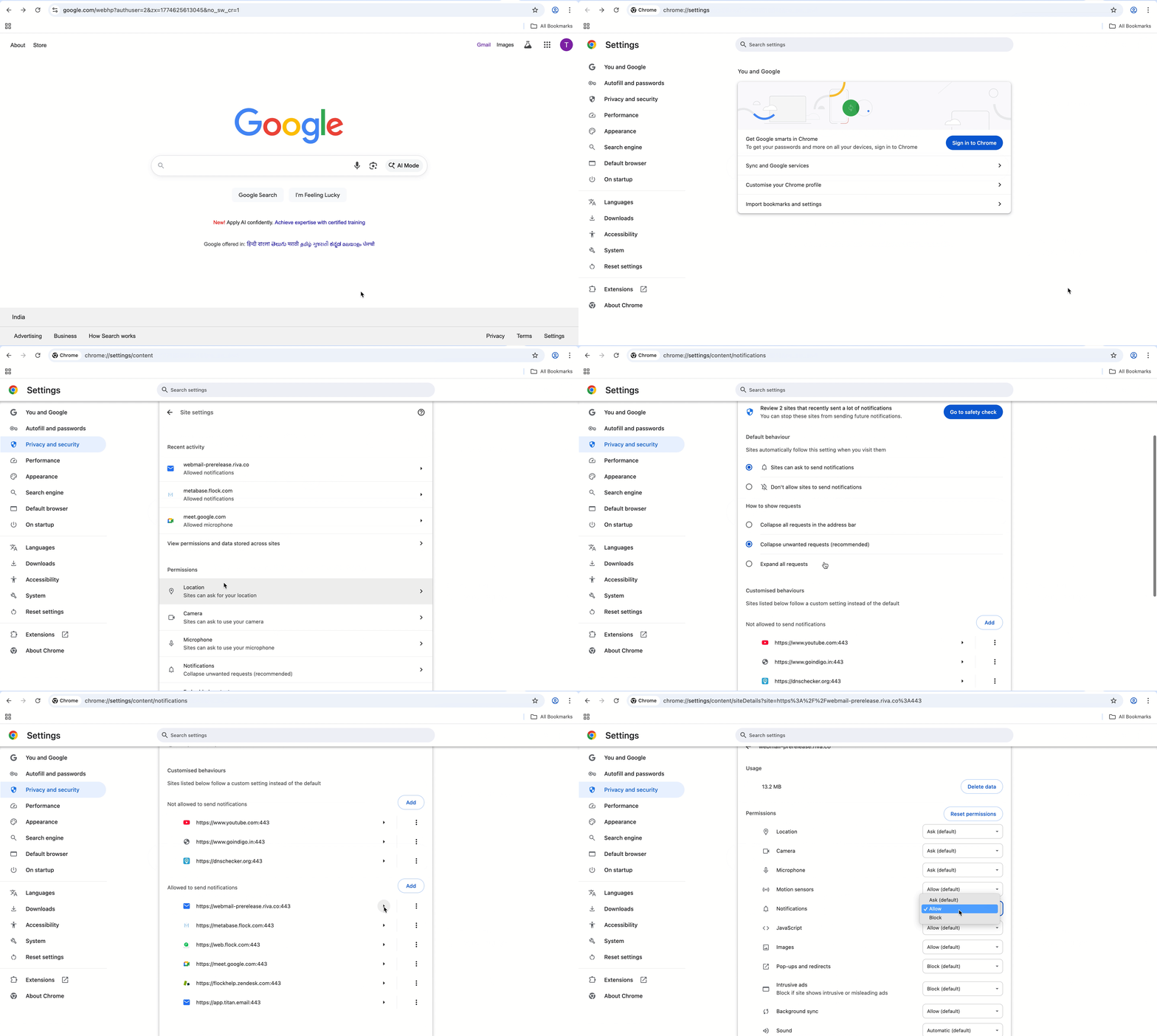
Steps to Enable Notifications on Desktop (Chrome)
- Open Chrome and click the three-dot menu (:) in the top right.
- Select Settings.
- Click Privacy and security in the left sidebar, then select Site Settings.
- Click Notifications under the "Permissions" section.
- Select Sites can ask to send notifications.
- To allow a specific site already blocked: Under "Not allowed", find the site, click it, and change the Notification permission to Allow
Steps to Enable Notifications on Mac (Safari)
- Open Safari Settings: Click "Safari" in the top menu bar and select "Settings" (or "Preferences" on older macOS).
- Navigate to Websites: Click the "Websites" tab at the top.
- Configure Notifications: Select "Notifications" on the left sidebar.
- Allow Sites: You can choose to allow or deny individual websites listed under "Allow websites to send notifications".
- Allow New Requests: Ensure "Allow websites to ask for permission to send notifications" is checked.
Important notes
- Sound notifications work only when push notifications are enabled.
- Inbox is selected by default for folder-based notifications.
- Sound playback volume cannot be adjusted from Webmail and will follow your device’s system volume settings.
- If you have multiple tabs open, only the last active tab will play sounds.