The composer is the window where you write a new email. As tools such as AI Write, Design, Templates, Invoices, and Groups are added, some of them move under the More menu. You can rearrange the toolbar so the tools you use most stay visible, which saves you clicks.
Open the toolbar settings
- In Titan Mail, open the New Mail window.
- On the toolbar, click the More actions icon (⋯).
- Click Manage composer toolbar.
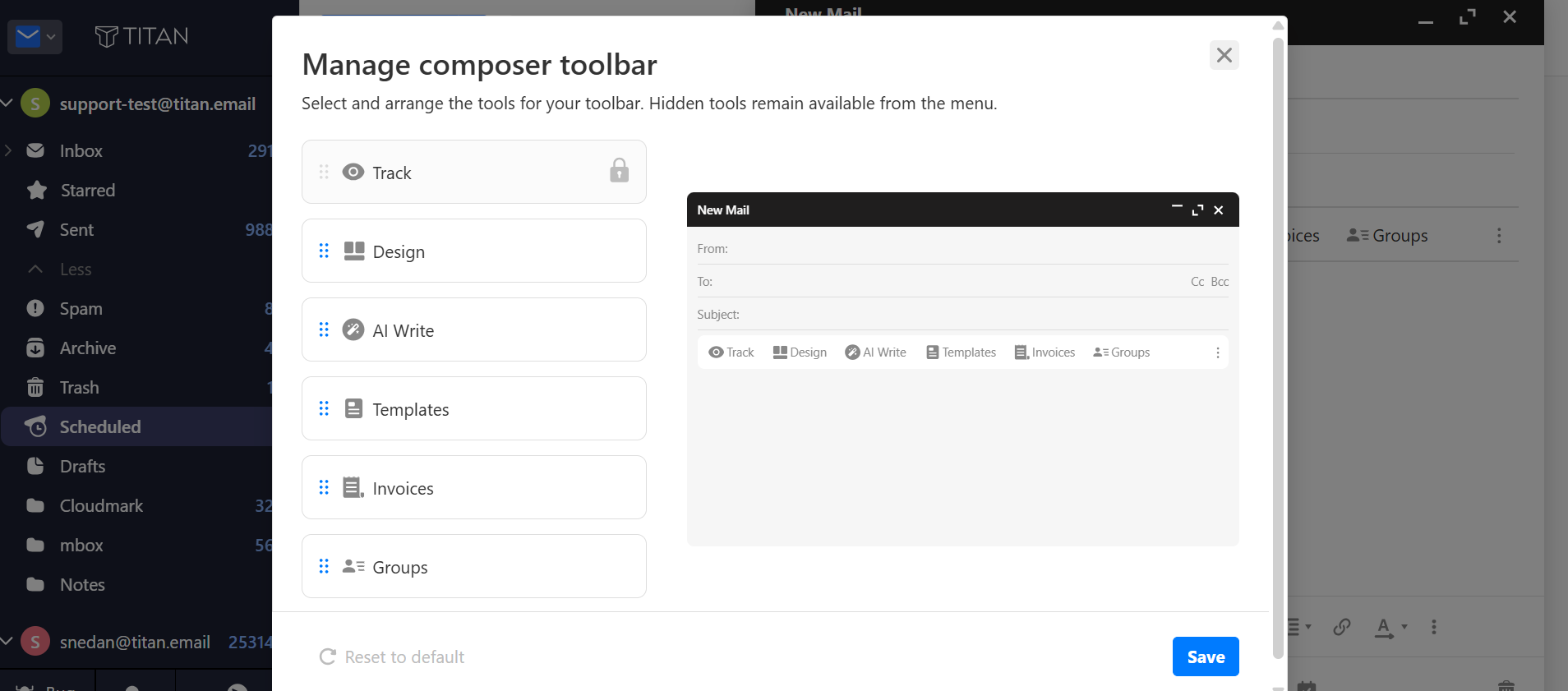
The Manage Composer Toolbar window opens.
Rearrange your tools
The window shows all available tools in a list on the left and a live preview of your toolbar on the right.
| alert-warning | Some tools, such as Track, are locked and can't be moved. |
- In the list on the left, drag a tool up or down to a new position.
- Repeat for any other tools you want to move.
The toolbar preview on the right updates as you move each tool.
What you'll see when you're done
The preview on the right shows your toolbar in the new order. Tools you moved toward the front stay visible on the toolbar, so you don't need to open the More menu to find them.