If you come across the error as seen in the image below, please follow the steps in this article.
| image-shadow | 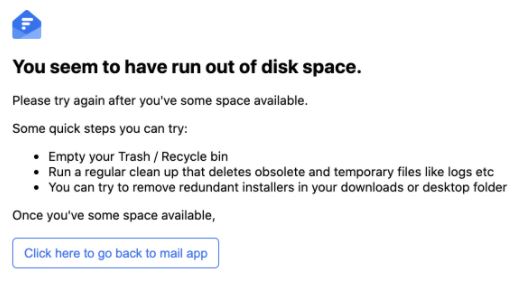 |
| tabs | |
| Windows | - Open Chrome console by pressing Ctrl + Shift + i on Windows
- Go to Application Tab in Chrome console
- Select the "Storage" option from the sidebar
- Click on "Clear Site Data"
- Go back to Titan Mail web page and refresh the page
|
| Mac OS | - Launch Chrome Developer Tools by pressing Option + Command + I
- Go to Application Tab in the Developer Tools
- Select the Storage option from the sidebar
- Click on Clear Site Data
- Go back to the Titan Mail web page and refresh the page
| image-shadow | 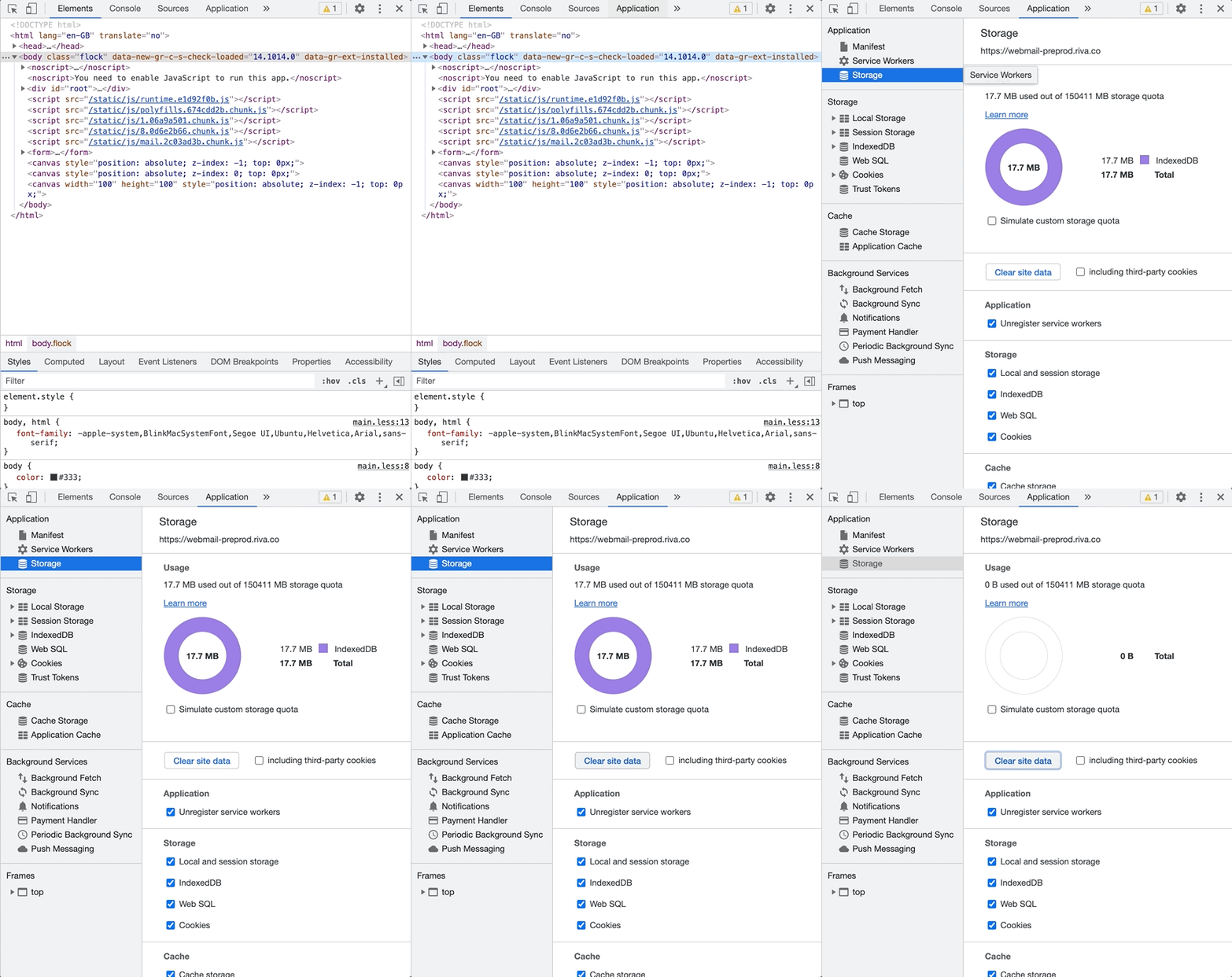 |
|